Tools
replaces Google Drive, Dropbox, and Google Calendar / Contacts
Nextcloud
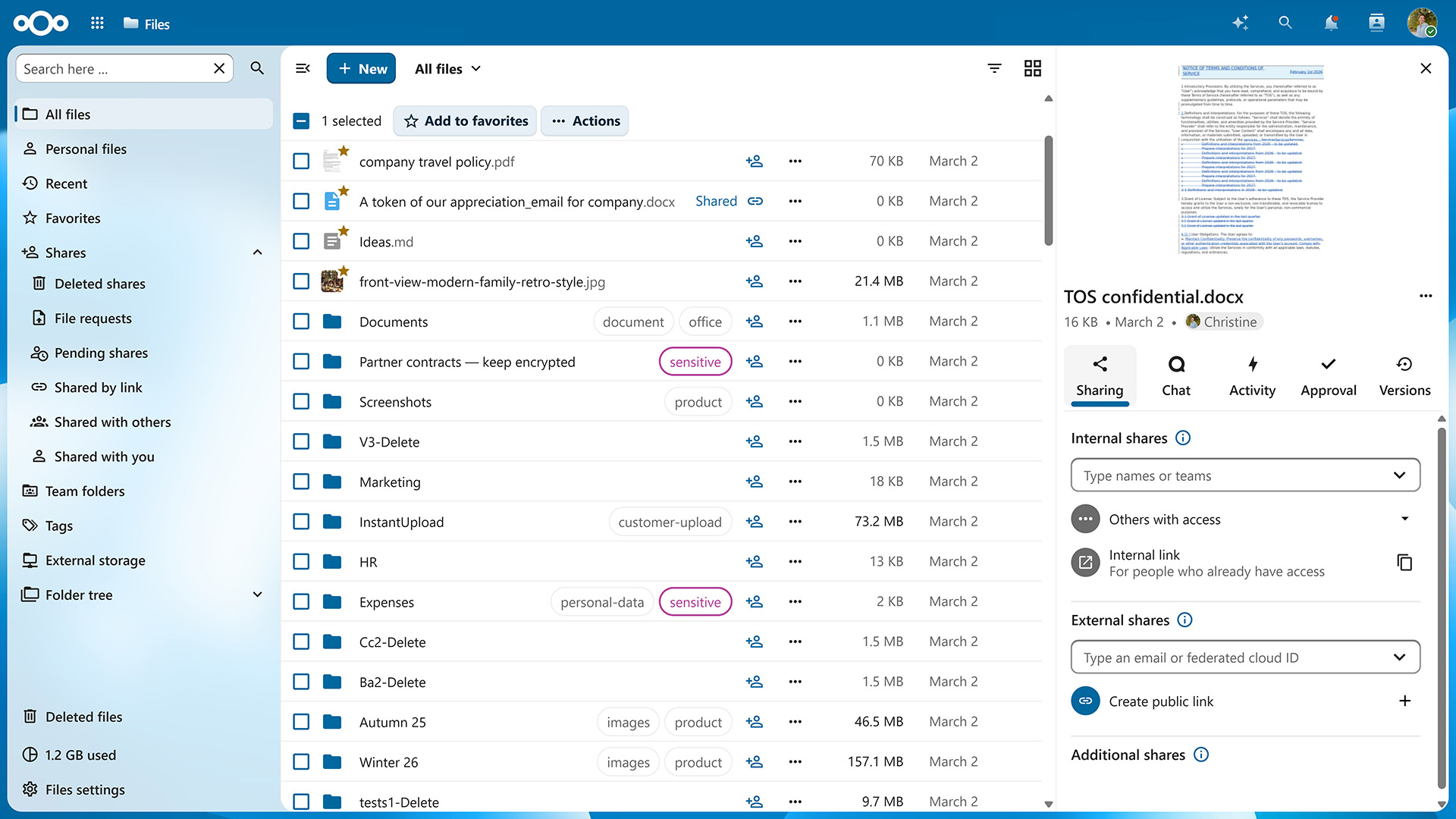
Your own private cloud for files, calendars, contacts, and more. This guide uses Nextcloud's official All-in-One installer, the easiest and most current way to self-host it.
This assumes you've already done the base setup: a server, SSH access, a firewall, and Docker installed. Budget about 20 minutes.
Start the AIO installer
Nextcloud's official installer is called All-in-One (AIO). It's a single container that then pulls and manages everything else for you, the database, the caching layer, and Nextcloud itself, so unlike some of the tools later in this series, you don't hand-write a multi-service compose file yourself.
On your server, create a folder for this project and a docker-compose.yml inside it:
name: nextcloud-aio
services:
  nextcloud-aio-mastercontainer:
    image: ghcr.io/nextcloud-releases/all-in-one:latest
    init: true
    restart: always
    container_name: nextcloud-aio-mastercontainer
    security_opt:
      - no-new-privileges:true
    volumes:
      - nextcloud_aio_mastercontainer:/mnt/docker-aio-config
      - /var/run/docker.sock:/var/run/docker.sock:ro
    network_mode: bridge
    ports:
      - "80:80"
      - "8080:8080"
      - "8443:8443"
volumes:
  nextcloud_aio_mastercontainer:
    name: nextcloud_aio_mastercontainer
Open the ports it needs, then start it: sudo ufw allow 80,8080,8443/tcp and docker compose up -d.
Open the setup screen
Visit https://YOUR-SERVER-IP:8443 in your browser. Use the server's IP address here, not your domain, and yes, it's https. Your browser will warn you the certificate isn't trusted. That's expected: this is AIO's own setup interface talking to itself, not your actual Nextcloud yet, so it's fine to click through the warning.
AIO shows a screen asking for your domain name. Enter the real domain you want Nextcloud to live at (for example cloud.yourdomain.com, pointed at your server via an A record in your DNS settings), submit it, and AIO takes over from there: pulling the Nextcloud, database, and caching containers, and wiring them together automatically. This takes a few minutes.
Log in and secure your account
Once setup finishes, AIO shows you a one-time, randomly generated admin password. Visit your real domain, log in as admin with that password, then immediately go to your profile picture, Security, and set a proper password you'll actually remember, plus two-factor authentication.
Install the apps
Each one connects with your domain and login. For the desktop and mobile apps, generate a dedicated app password under Security settings instead of typing your real password into every device; it can be revoked individually later if a device is lost or stolen.
Before you rely on this
- AIO needs a real domain and port 443 to itself. It won't run behind a bare IP or in a URL subfolder, and if you're using Cloudflare's free proxy in front of it, switch that domain to DNS-only. The free tier's upload cap and timeout will otherwise break large file uploads.
- Once setup is done, close the AIO admin ports back down:
sudo ufw delete allow 8080/tcpandsudo ufw delete allow 8443/tcp. Only port 443, plus 80 for certificate renewal, needs to stay open to the world. - Don't back up the data by hand, and don't just copy the files folder. Use AIO's own built-in backup tab (Backup and restore), which does encrypted, incremental backups of the files and database together, in sync. A files-only backup without the matching database isn't a usable backup.
- If you'd rather have full manual control, your own database, your own reverse proxy, optional Office integration, that's the "advanced" install path using the plain
nextcloudimage instead. It's a reasonable choice once you're comfortable with Docker, but it also means you're personally responsible for TLS, backups, and upgrades that AIO otherwise handles for you.
More tools
Ready for the next one?
Every guide here assumes you've already completed the base setup: server, firewall, and Docker.