Tools
replaces Notion for notes
BookStack
A simple, page-and-book-organized wiki for notes, documentation, and anything you want a shared, searchable home for.
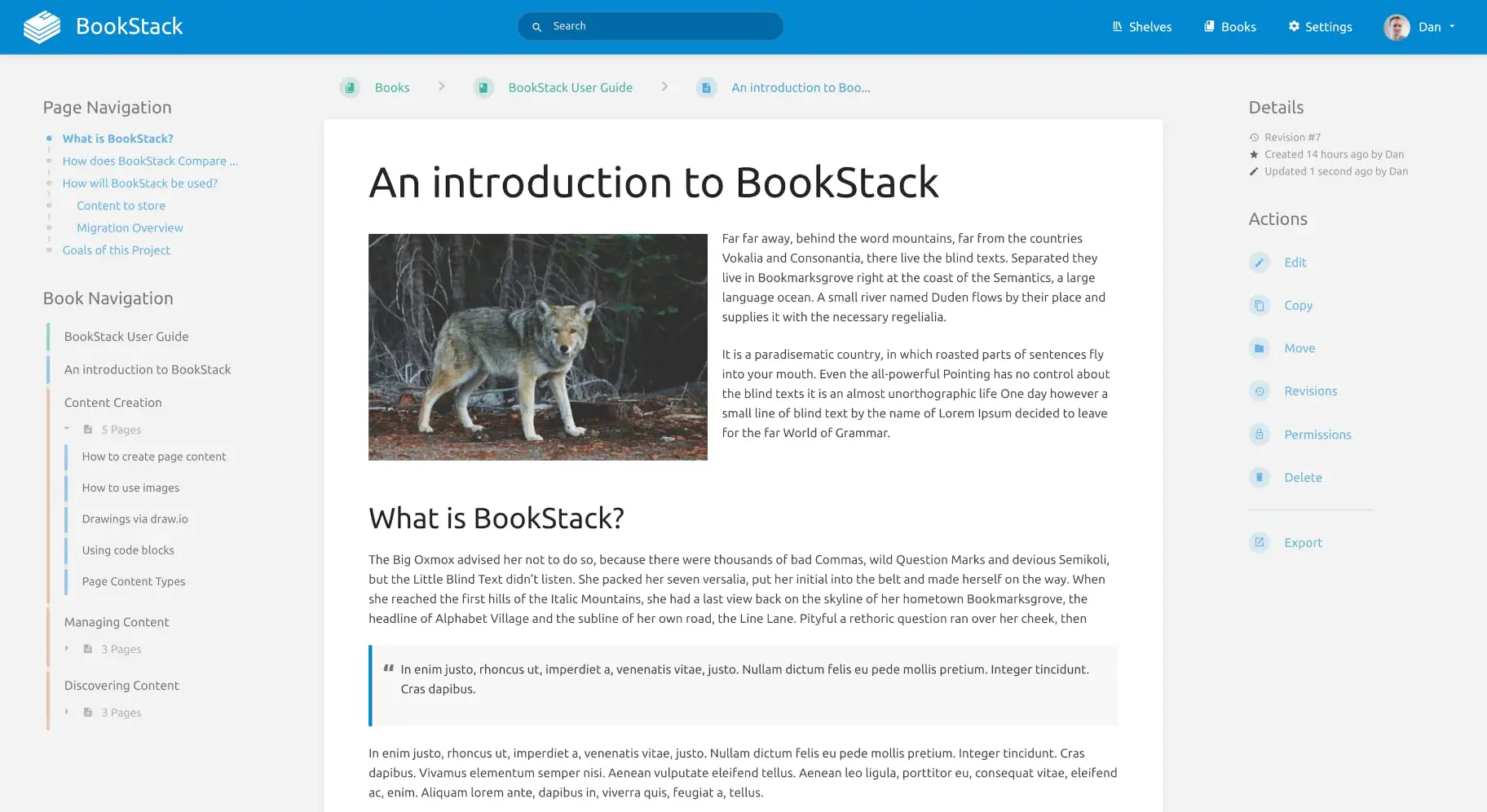
This assumes you've already done the base setup: a server, SSH access, a firewall, and Docker installed. One thing worth knowing up front: BookStack doesn't publish its own official Docker image. This guide uses the LinuxServer.io build, the de facto standard, documented on BookStack's own install page.
Write the compose file
This pairs BookStack with a MariaDB database. bookstack joins the shared web network instead of publishing its own port; the domains and HTTPS deep dive covers why every tool guide on this site does this.
services:
  bookstack:
    image: lscr.io/linuxserver/bookstack:latest
    container_name: bookstack
    security_opt:
      - no-new-privileges:true
    environment:
      - PUID=1000
      - PGID=1000
      - TZ=Etc/UTC
      - APP_URL=https://wiki.yourdomain.com
      - APP_KEY=REPLACE-WITH-A-GENERATED-KEY
      - DB_HOST=bookstack_db
      - DB_PORT=3306
      - DB_USERNAME=bookstack
      - DB_PASSWORD=changeme
      - DB_DATABASE=bookstackapp
    volumes:
      - ./config:/config
    restart: unless-stopped
    networks:
      - default
      - web

  bookstack_db:
    image: mariadb:11
    container_name: bookstack_db
    security_opt:
      - no-new-privileges:true
    environment:
      - MARIADB_ROOT_PASSWORD=changeme-too
      - MARIADB_DATABASE=bookstackapp
      - MARIADB_USER=bookstack
      - MARIADB_PASSWORD=changeme
    volumes:
      - ./db:/var/lib/mysql
    restart: unless-stopped

networks:
  web:
external: trueGenerate the app key on your server, before starting the stack:
docker run -it --rm --entrypoint /bin/bash lscr.io/linuxserver/bookstack:latest appkeyCopy the value it prints into APP_KEY above, then start everything with docker compose up -d.
Wire it into the shared reverse proxy
This site uses one Caddy instance for the whole server, not one per app, and every tool guide points back to the same setup rather than each showing its own. If you haven't set it up yet, the domains and HTTPS deep dive is the canonical walkthrough, including the exact port and Caddyfile block for every tool on this site. Once it's running, connect BookStack with one block in the shared Caddyfile:
wiki.yourdomain.com {
    reverse_proxy bookstack:80
}
Then reload it: docker compose restart caddy in the proxy's folder.
Log in and change the default account immediately
Visit your domain. There's no setup wizard: BookStack ships with a well-known, hardcoded default login, admin@admin.com / password. Log in with that, then go straight to Settings, Users, and change both the email and password before doing anything else. Leaving the default in place is one of the most common ways self-hosted apps get compromised.
Decide on registration
Under Settings, Registration, choose whether anyone can sign up or whether you'll invite people yourself. For most personal wikis, turning registration off is the right default. BookStack is web-only, there's no iOS, Android, or desktop app to install, so this is the last setup step.
Before you rely on this
- Back up two things separately: the
configfolder (settings, uploaded images and files, themes) and a database dump ofbookstack_db. Either one alone is incomplete. - If you ever change
APP_URLafter the initial install, rundocker exec -it bookstack php /app/www/artisan bookstack:update-url OLD-URL NEW-URLafterward, or old links baked into your pages will keep pointing at the previous address. - Email sending and webhooks are synchronous by default, which can make actions feel slow. If that bothers you, add
QUEUE_CONNECTION=databaseto the environment section to move that work to the background.
More tools
Ready for the next one?
Every guide here assumes you've already completed the base setup: server, firewall, and Docker.